What you'll learn
- Recommended sequence: Account & Settings -> Resume Optimizer -> Applications Board -> Interview Prep -> Review Feedback -> Iterate.
- Career Capybara Onboarding: Start Here
- Module 1: Account & Settings (First 5 Minutes)
- Module 2: Resume Optimizer (Your Core Workspace)
Career Capybara Onboarding: Start Here
This guide walks you through every major module in the correct order so you can move from setup to application-ready output without guessing what each button does.
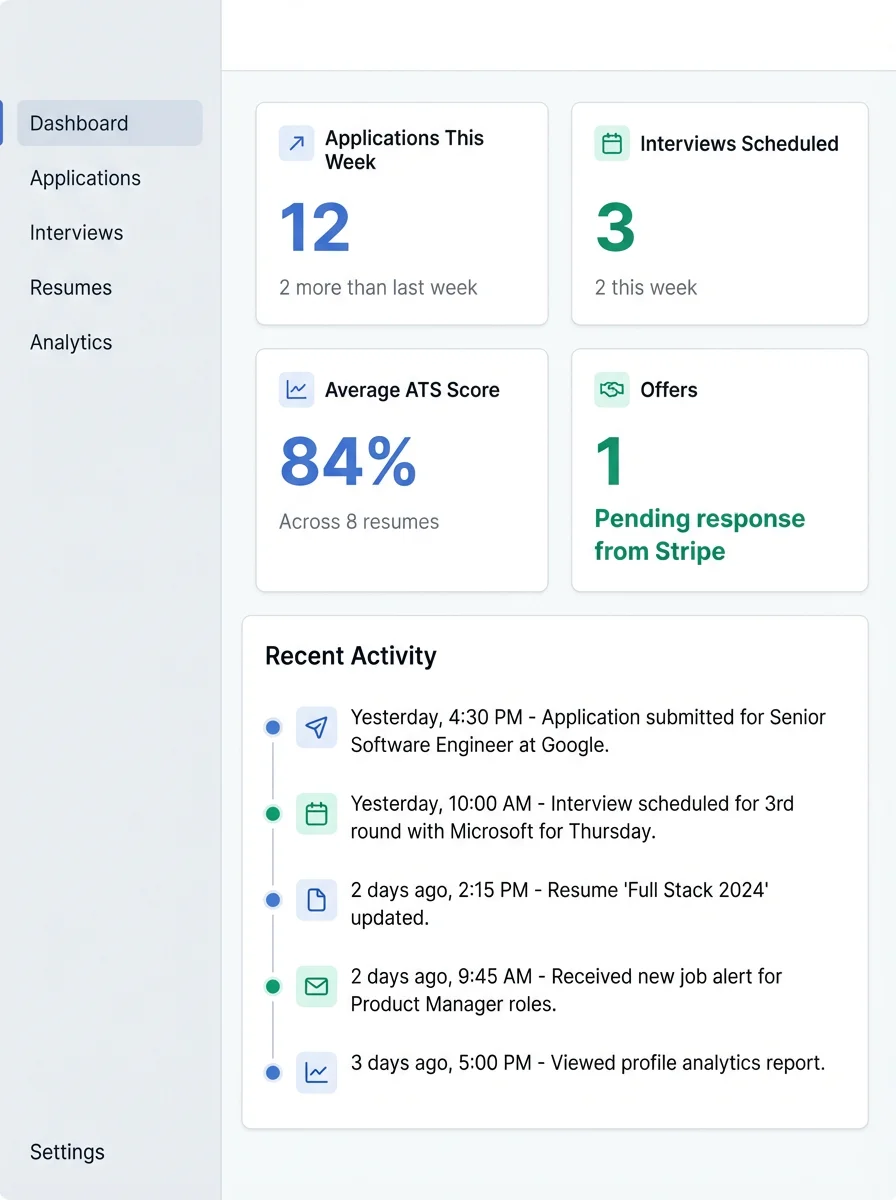
Module 1: Account & Settings (First 5 Minutes)
Open Settings from the sidebar. This is where you define your baseline preferences used across resume and interview workflows.
- Profile: Set your name, headline, and location so generated content reflects your identity.
- Preferences: Configure style and communication preferences used by AI suggestions.
- Integrations: Connect email/calendar only when you are ready to sync job activity.
Module 2: Resume Optimizer (Your Core Workspace)
The Resume Optimizer is your main production area for master resume management and tailored resume generation.
- Upload & Customize: Upload your master resume (source of truth).
- View: Open current resume content for direct inspection.
- Share: Generate a review link and collect structured feedback.
- Customize: Launch role-specific optimization against a JD.
- More (three dots): Access extra actions like download and feedback review.
Module 3: Applications Board (Pipeline Control)
Use Applications Board to track every role and tie each application to a tailored resume. This closes the loop between resume generation and outcomes.
- Add Application: Create a new card with role/company/JD.
- Status Columns: Move cards as you advance (Applied, Interviewing, Offer, etc.).
- Card Details: Save recruiter notes, links, salary ranges, and follow-ups.
- Attach Resume: Associate the exact tailored resume used for that submission.
Module 4: Interview Prep (Practice + Diagnostics)
After your first interview invite, switch to Interview Prep and run mock sessions for the same role and company context used in your application.
- Start Session: Enter target role/company before practice.
- Answer Framework: Use STAR for behavioral prompts.
- Post-Session Report: Review strengths, gaps, and suggested improvements.
- Repeat: Run another mock with targeted adjustments.
Module 5: Feedback & Collaboration (Share + Apply)
From Resume Optimizer, click Share to send a review link. Reviewers submit feedback with required name/email. You can open review detail, edit relevant sections, and save updates back to the same resume version.
- Share Badge: Shows how many unique reviewers have submitted feedback.
- Active Reviews: Grouped by resume so you can open each thread clearly.
- Review Detail: Click a comment, edit section content, apply change, then save resume.
Your First End-to-End Workflow (Recommended)
- Upload master resume in Resume Optimizer.
- Create one tailored resume for a real JD.
- Add that role in Applications Board and attach the tailored resume.
- Share for review and collect feedback.
- Apply edits in the review page and save.
- Run one Interview Prep session for the same role.
After this first cycle, repeat with each new target role. Career Capybara performs best when your modules stay connected through the same application context.